AI context
Describe your own company once so AI writes about your business instead of a generic one.
Describe your own company once so AI writes about your business instead of a generic one.
How to use it
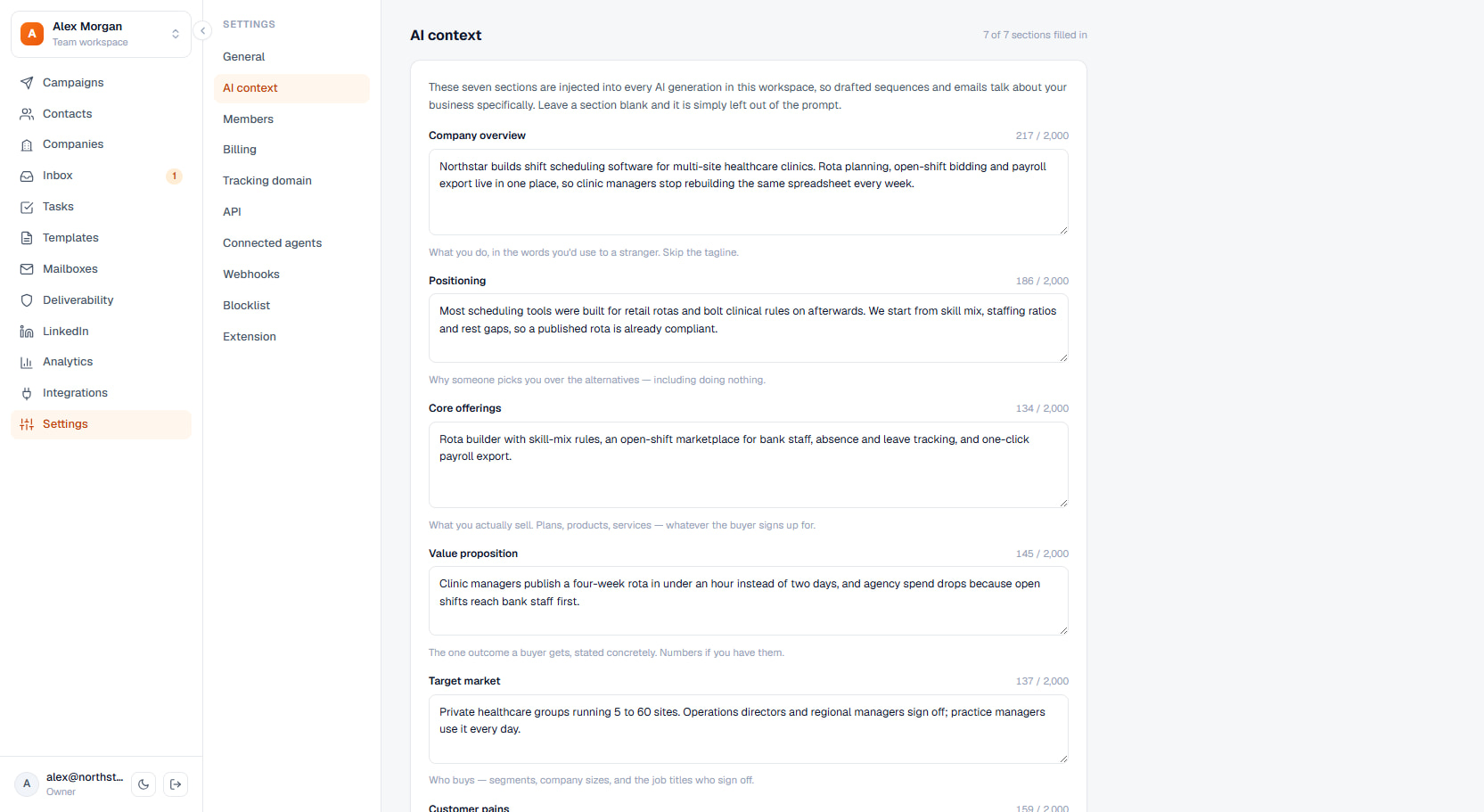
Open Settings and choose AI context, the tab directly under General. Seven boxes describe your own company — not a contact's: Company overview, Positioning, Core offerings, Value proposition, Target market, Customer pains, and Competitors. Every box is optional and holds up to 2,000 characters. A box left blank is simply left out of the prompt, so filling in two is better than filling in none. Press Save when you are done; unsaved edits never reach the AI prompts.
Write the point first. Only the opening of each section is sent to the model — about 400 characters per section — so a box that starts with the sentence that matters survives the trim.
Draft with AI is the shortcut for a first pass. Paste anything that already describes the company — an about-us paragraph, a pitch, a one-pager, between 20 and 4,000 characters — and AI expands it into all seven sections. The result lands in the boxes as unsaved text for you to read and edit; nothing is stored until you press Save. It replaces all seven boxes at once, so when some already have text the dialog asks you to confirm before it runs. Each run costs 5 AI credits, and the button is hidden when the workspace cannot use AI at all.
Important behavior
Only a workspace admin or owner can edit the profile. Everyone else sees the same seven sections read-only, because this text shapes every email and sequence AI writes in the workspace.
Saving changes two things: AI sequence generation and AI email writing. Write and personalize receive the full seven-section profile; improve receives a reduced version — positioning and value proposition only — because it is rewriting copy you already wrote and needs the voice rather than the briefing. Reply classification in the inbox is deliberately untouched by the profile.
Nothing in the profile is ever sent to a contact. It only grounds the drafts you are shown, and a workspace that leaves the tab empty generates exactly what it did before the tab existed — this is opt-in, and ignoring it breaks nothing.
Draft with AI spends AI credits from the workspace plan. Plans with no monthly AI credit allowance answer "Out of AI credits" instead of drafting; typing the seven sections in by hand always works and costs nothing.