Connect enrichment and verification providers
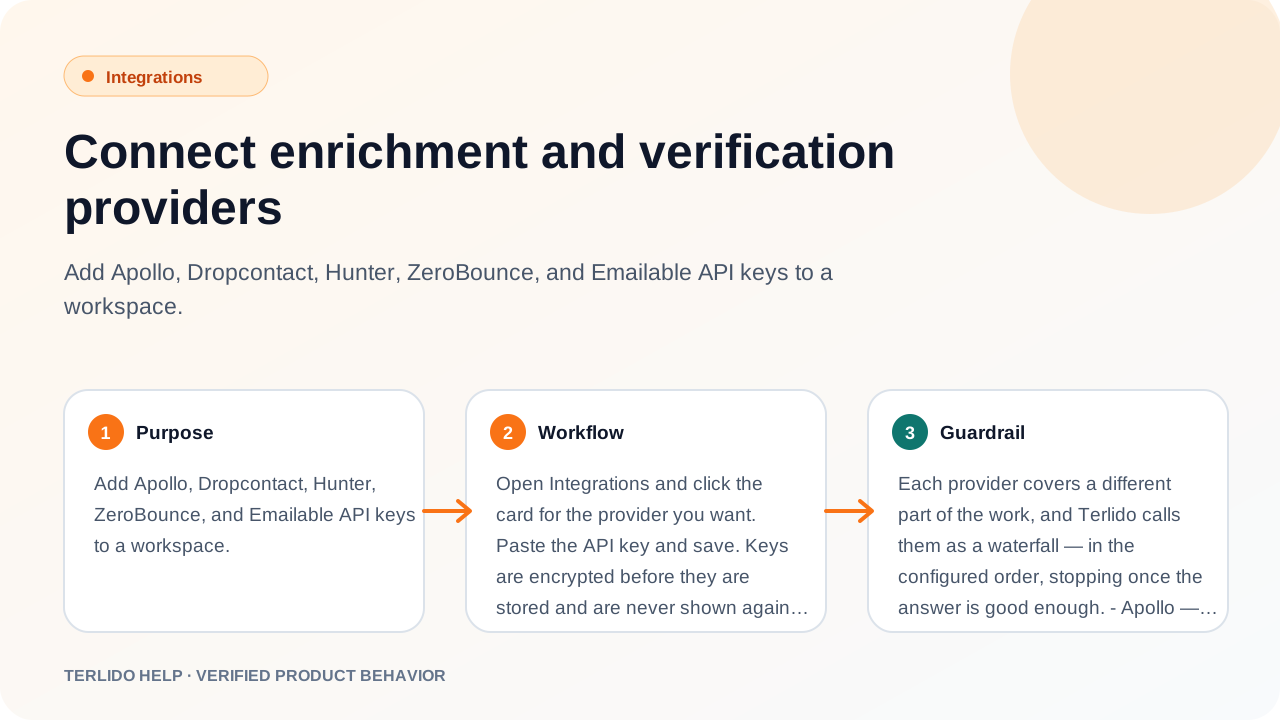
Add Apollo, Dropcontact, Hunter, ZeroBounce, and Emailable API keys to a workspace.
Add Apollo, Dropcontact, Hunter, ZeroBounce, and Emailable API keys to a workspace.
How to use it
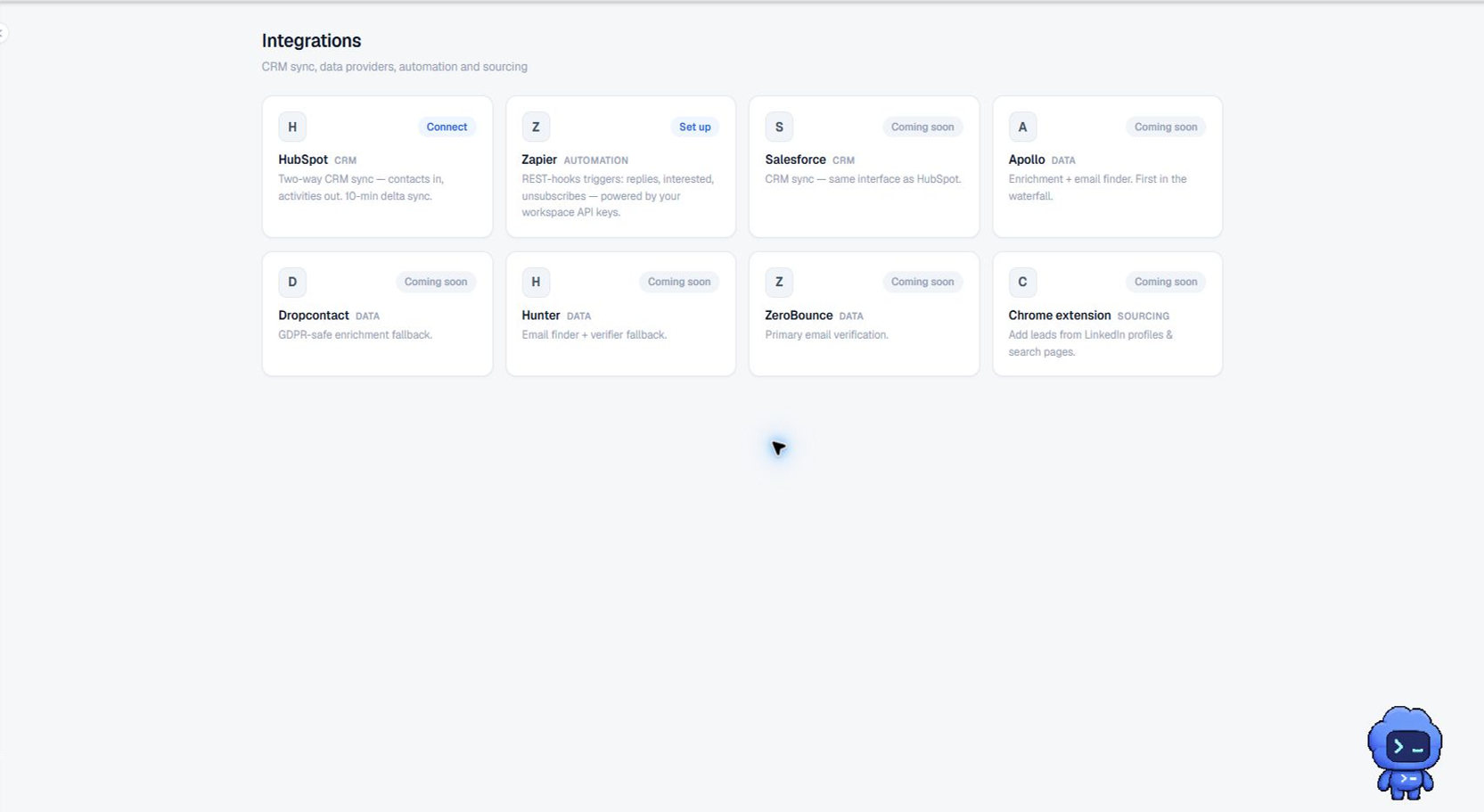
Open Integrations and click the card for the provider you want. Paste the API key and save. Keys are encrypted before they are stored and are never shown again, so replacing one means pasting a new key rather than editing the old one. A card reads Set up while no key is available, and Connected once one is.
Only a workspace owner or admin can add, replace, or remove a key. Other members can open the screen and read each card's status, but the key dialog refuses their change.
Each key comes from the provider's own dashboard:
- Apollo (apollo.io) — your Apollo account settings, in the integrations and API area.
- Dropcontact (dropcontact.com) — the API section of your Dropcontact account.
- Hunter (hunter.io) — the API keys page of the Hunter dashboard.
- ZeroBounce (zerobounce.net) — the API section of your ZeroBounce account.
- Emailable (emailable.com) — the API keys area of the Emailable dashboard.
Use Remove workspace key in the dialog to clear a key. If the Terlido server also carries an app-wide key for that provider, the workspace falls back to it and the card stays Connected; otherwise the card returns to Set up.
Important behavior
Each provider covers a different part of the work, and Terlido calls them as a waterfall — in the configured order, stopping once the answer is good enough.
- Apollo — enrichment and email finding. First in both default orders.
- Dropcontact — enrichment fallback, run after Apollo. Its API is asynchronous, so a result can take a few seconds longer to come back.
- Hunter — email finding and verification. Behind Apollo for finding, last for verification.
- ZeroBounce — email verification, tried when the provider ahead of it cannot reach a verdict.
- Emailable — email verification, first in the default verify order and the only provider the bulk campaign-launch sweep uses.
The default orders are Apollo then Dropcontact for enrichment, Apollo then Hunter for email finding, and Emailable, ZeroBounce, then Hunter for verification.
A provider with no key is skipped: it is left out of the waterfall, the next provider in the order runs instead, nothing errors, and nothing is charged. Work only stops when no provider in the whole order has a key, and then it reports "No enrichment provider configured". Keys are per workspace, so connecting Apollo in one client workspace connects it nowhere else.
Verification is additionally governed by the Email verification settings on the same screen. Choosing No verification turns verification off for the workspace, and queued verify work becomes a clean skip instead of an error. Those settings are admin-only too. See Enrich and verify contacts for how the connected providers are then used.