Tasks overview
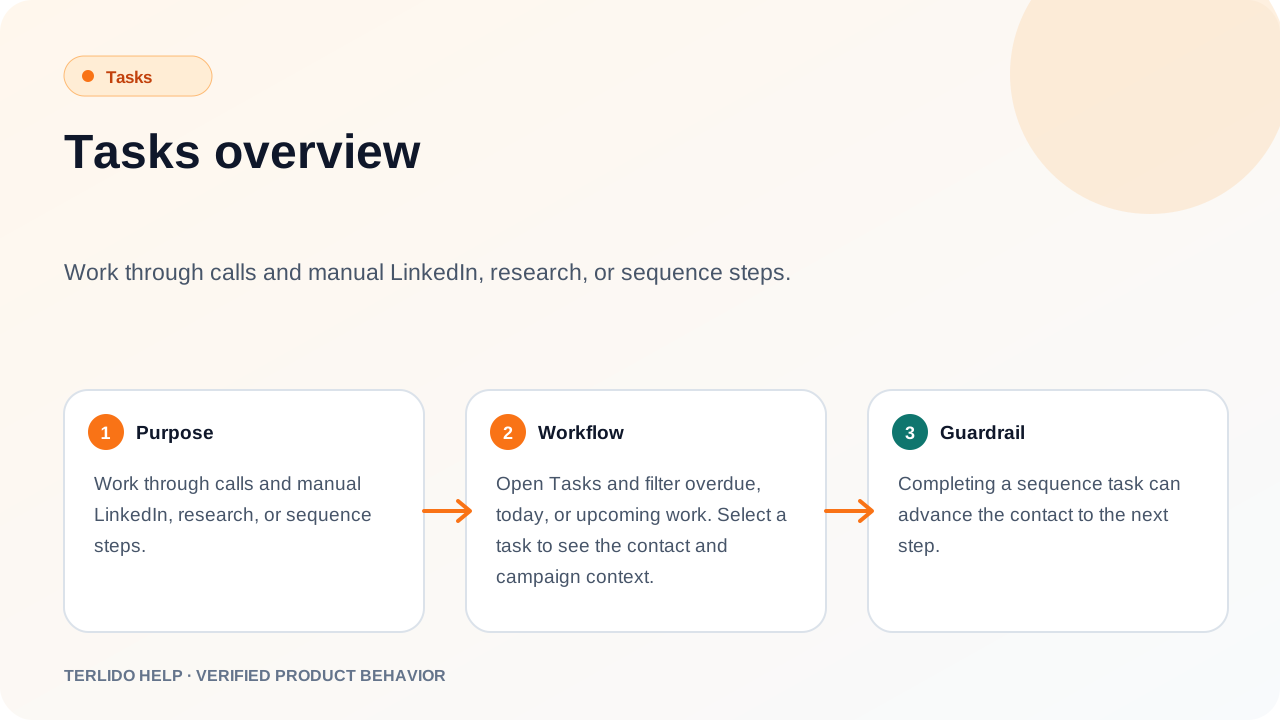
Work through calls and manual LinkedIn, research, or sequence steps.
Work through calls and manual LinkedIn, research, or sequence steps.
How to use it
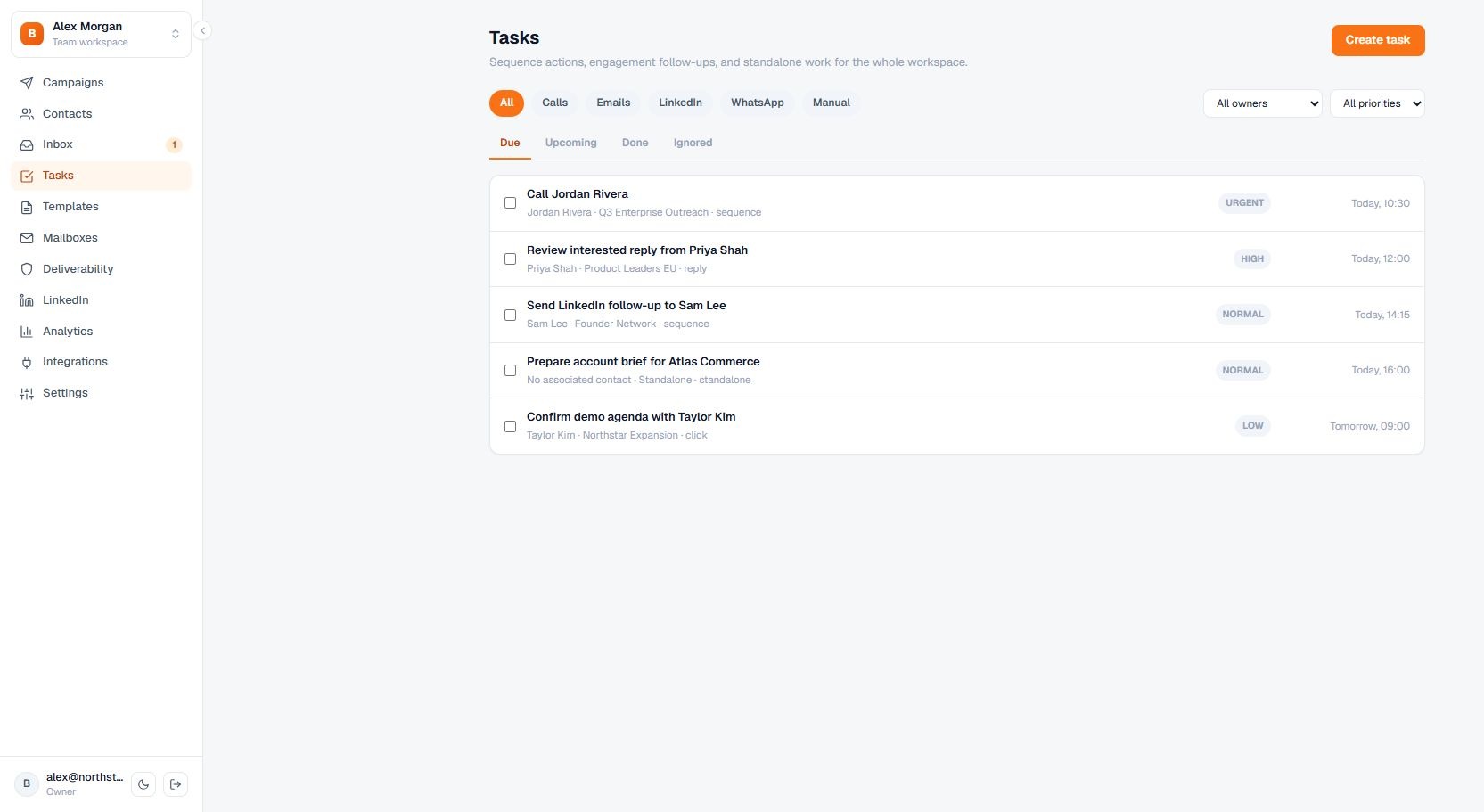
Open Tasks and filter overdue, today, or upcoming work. Select a task to see the contact and campaign context.
Filter the queue by channel, owner, and priority, and switch between due, upcoming, completed, and ignored work. Snoozed tasks stay out of the queue until the time you snoozed them to.
Most tasks arrive automatically. When a campaign sequence reaches a call step, a manual task step, or any LinkedIn step, Terlido creates the task for you and the contact waits on that step until you resolve it. No LinkedIn step runs automatically — you perform the visit, invite, or message in LinkedIn yourself and mark the task done. The task inherits the step's title, note, link, priority, and owner with personalization already applied for that contact, and it is due when the step was scheduled. You can also create a standalone task yourself for work that is not part of a sequence, with or without an associated contact.
Important behavior
Completing a sequence task can advance the contact to the next step.
Overdue, today, and upcoming are calculated from the due date as whole UTC days, so a task due today stays in Today for the rest of that day and only an earlier due date counts as overdue. A task with no due date is treated as upcoming. Each parked sequence step has exactly one task, so a campaign never produces duplicate follow-up work for the same step.