Switch from Instantly, Lemlist or Smartlead
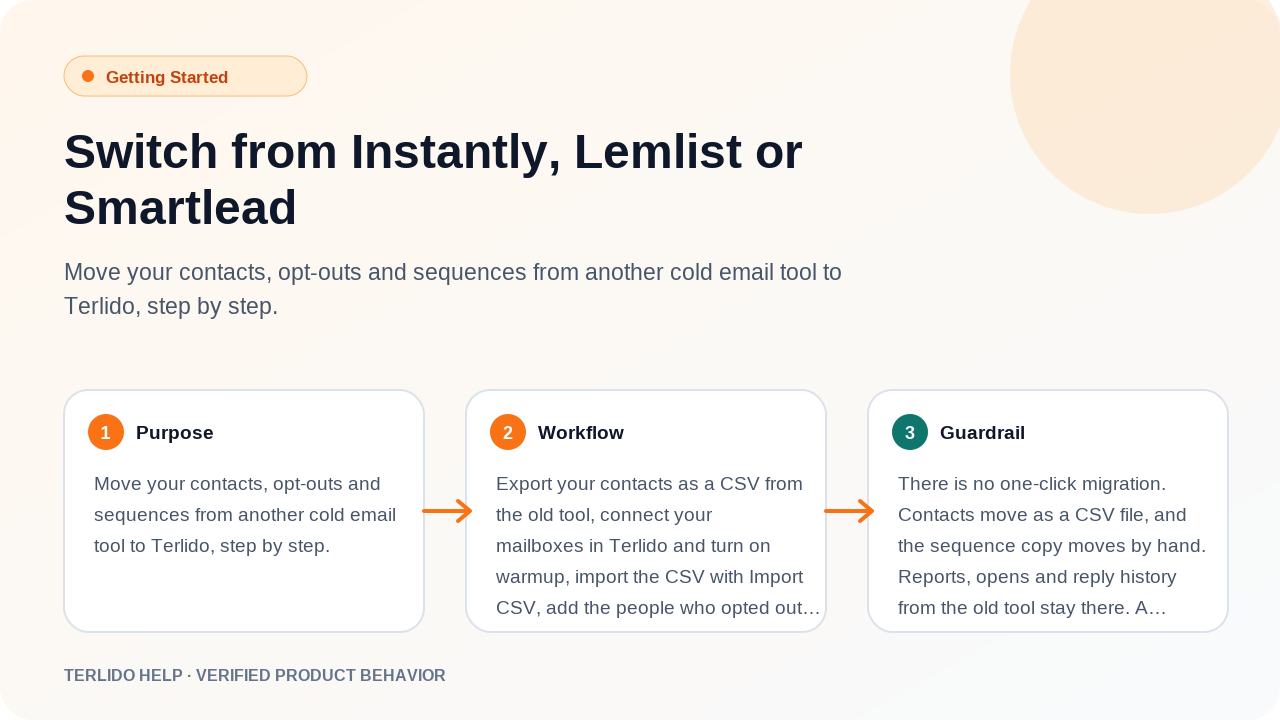
Move your contacts, opt-outs and sequences from another cold email tool to Terlido, step by step.
Move your contacts, opt-outs and sequences from another cold email tool to Terlido, step by step.
How to use it
Export your contacts as a CSV from the old tool, connect your mailboxes in Terlido and turn on warmup, import the CSV with Import CSV, add the people who opted out to your Blocklist, rebuild the sequence, then stop the old campaigns before you launch the new ones.
Important behavior
There is no one-click migration. Contacts move as a CSV file, and the sequence copy moves by hand. Reports, opens and reply history from the old tool stay there. A lemlist contacts export is recognized automatically, and its bounced, unsubscribed and not interested contacts go on your Blocklist during the import.
Before you start
- Export before you cancel the old tool. What you can still open after a plan ends differs from tool to tool, so check its cancellation terms.
- Keep the old campaigns running until your Terlido campaign is ready. Stop them before you launch in Terlido, so nobody gets the same email from two tools.
- A new workspace gets a 14-day trial at Multichannel limits, with no card. The Free plan keeps warmup on one mailbox, but campaigns need the trial or a paid plan. See terlido.com/pricing.
Step 1: Export your contacts
Export from the place that has all your contacts, not only one campaign. The menus below are from each tool's public help center (checked November 2026); they can change, so follow the linked page if a button has moved.
Instantly
In a campaign, open the Leads tab, select the leads and click Download. For a fuller file, go to CRM, then Leads, filter by campaign or list, select the leads, and choose Row actions, then Download selected. Source: How to Download Leads (CSV).
For opt-outs, open the Global Blocklist in Instantly's settings, select the entries and use Actions, then Download all or selected. Source: Global Blocklist.
Lemlist
Click Contacts in the left sidebar, select the contacts, and choose Export from the bulk actions. Clear any filters first, so no one is left out. Source: Use the Contacts section. Export the companies the same way if you use them.
You do not need a separate opt-out file from lemlist. See Step 4.
Smartlead
Open the campaign, go to its lead list, filter if you need to, and choose Download as CSV. Do this for each campaign you want to move. Leads that unsubscribed or were blocked mid-campaign show the Email Status Stopped, so you can filter for them and download them as their own file. Source: Data export options in Smartlead.
Step 2: Connect your mailboxes
Connect the same mailboxes you sent from before. Terlido sends from your own mailbox, so your domain and its sending history come with you.
- Gmail or Google Workspace: with a Google app password. See Connect a Gmail mailbox.
- Microsoft 365 or Outlook: sign in with Microsoft. See Connect a Microsoft mailbox.
- Any other provider: with IMAP and SMTP details. See Connect a custom IMAP/SMTP mailbox.
Check your domain's SPF, DKIM and DMARC records with DNS checks, or with the free domain checker.
Step 3: Turn on warmup
Turn on warmup for each mailbox. Turn off the old tool's warmup for the same mailbox first, so the mailbox is not in two warmup pools at once. Terlido raises volume gradually, and warmup and campaigns share one daily send budget per mailbox. See How email warmup works and Warmup ramp and sending window.
Step 4: Import your contacts
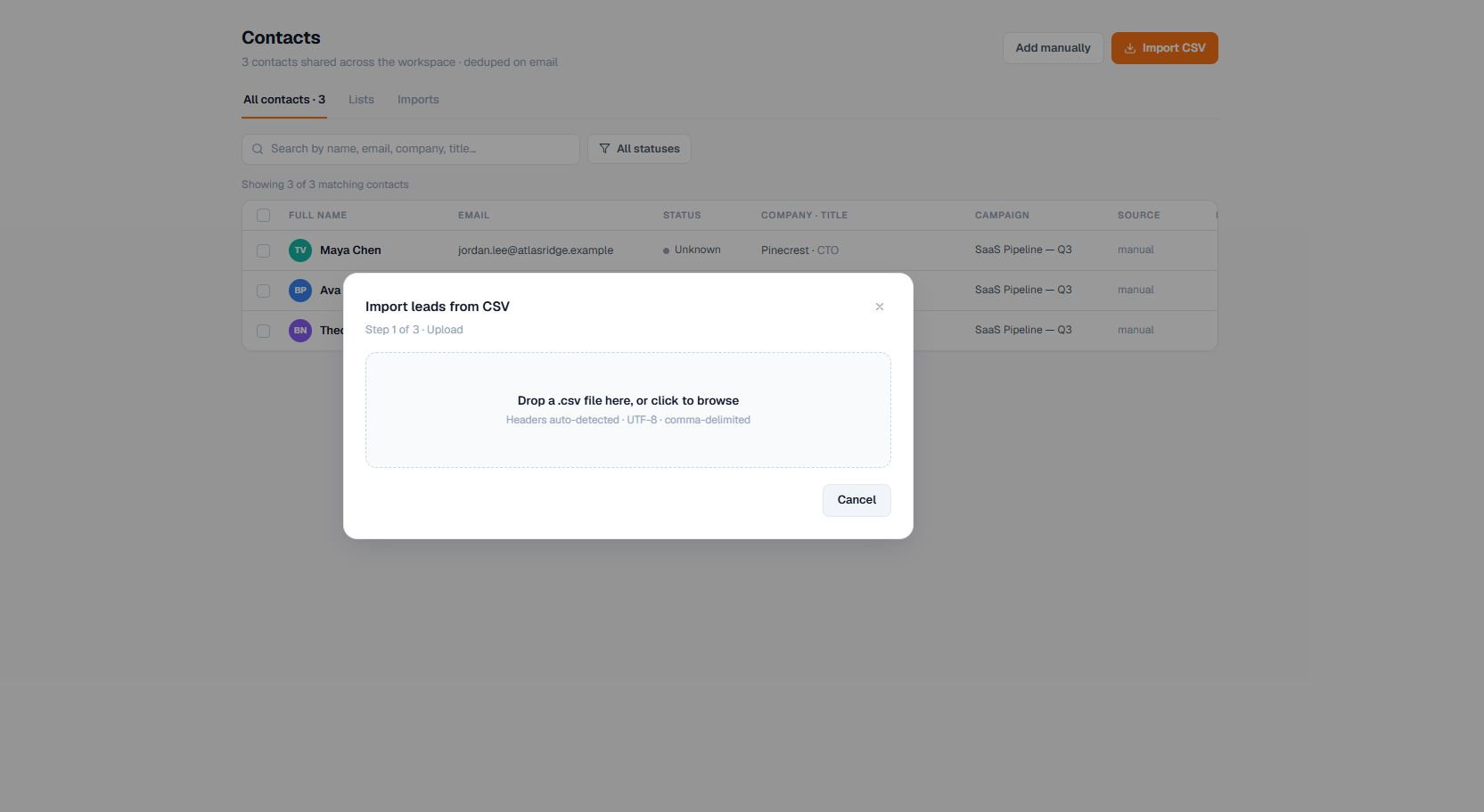
In Outreach, open Contacts and click Import CSV.
- Upload the file. One import takes up to 20,000 rows; split a bigger file.
- Check the column mapping. Email, first name, last name, company, title, phone, LinkedIn URL and time zone are matched by common header names. Map any other column you use in your emails to a Custom field…, or skip it.
- Choose Skip duplicates or Update duplicates (fills in blank fields only), and pick a list to add the contacts to.
- Start the import and download the error CSV if some rows are rejected.
From lemlist: choose Import from: lemlist, or upload the file as it is. Terlido checks the header row and maps a lemlist contacts or companies export for you. The lemlist history (status, campaigns, dates) lands in custom fields that start with lemlist_. Contacts whose lemlist status shows a bounce, an unsubscribe or "not interested" are still imported, but they go on your Blocklist, so Terlido never emails them.
To test a file before you import it, paste it into the free CSV campaign import checker. More detail: Import contacts from CSV.
Step 5: Bring over your opt-outs
People who unsubscribed or bounced in the old tool must not get email from Terlido. Leave them out of the import file, and add them to your Blocklist, so a later import or list cannot email them again.
- Settings, Blocklist: add each email or a whole domain. Adding an entry also stops any matching campaign contact.
- If your workspace has Terlido Newsletter: its Blocklist tab takes up to 500 lines at a time, and the list is shared with Outreach. See Manage subscribers.
- A long list on a paid plan: add entries with the REST API or the MCP server.
lemlist users can skip this step for the contacts in their export (see Step 4).
Step 6: Rebuild your sequence
Create a campaign and add the steps in the Sequence tab. Copy your email text across, then fix the variables: the syntax differs between tools.
{{firstName}},{{lastName}},{{company}},{{title}}for the standard fields.{{customFields.role}}for a custom field you mapped in Step 4.{{icebreaker | "fallback text"}}for a fallback when a value is empty.{option a|option b}for spintax.
Preview the real contacts before you launch. See Sequence editor, Personalization and spintax and Schedule.
Step 7: Switch over
Add the contacts or list to the campaign, stop the old tool's campaigns for the same people, then launch in Terlido. Contacts who are on your Blocklist are skipped when they are added. See Add contacts to a campaign and Launch readiness.
What changes in Terlido
- You send from your own mailbox. Gmail, Microsoft 365 or any IMAP/SMTP mailbox you connect.
- Pricing is per seat. Mailbox and contact limits are per workspace and depend on the plan. Every paid plan includes the API and MCP. See terlido.com/pricing.
- Warmup and campaigns share one daily budget per mailbox. See Shared send budget.
- One Blocklist for everything. It blocks Outreach and Newsletter email alike.
For a side-by-side look before you switch, see the comparisons for Instantly, Lemlist and Smartlead.
FAQ
Can I move my campaign reports and reply history?
No. Reports, opens, clicks and inbox threads stay in the old tool. Export any report you want to keep before you cancel there. A lemlist export keeps some history as lemlist_ custom fields on each contact.
Will my warmed-up mailboxes lose their reputation?
Your mailbox and domain keep their own sending history, because Terlido sends through the same mailbox. Terlido's warmup starts its own gradual ramp, and the daily volume you set is shared by warmup and campaigns.
Do I have to pay to try it?
No. A new workspace starts with a 14-day trial at Multichannel limits, and no card is needed. After the trial it moves to the Free plan.
Is there an import for Instantly or Smartlead files?
Not a dedicated one. Their CSV files go through the normal Import CSV, where you check the column mapping yourself. lemlist is the only tool whose export is recognized automatically today.