Manage subscribers
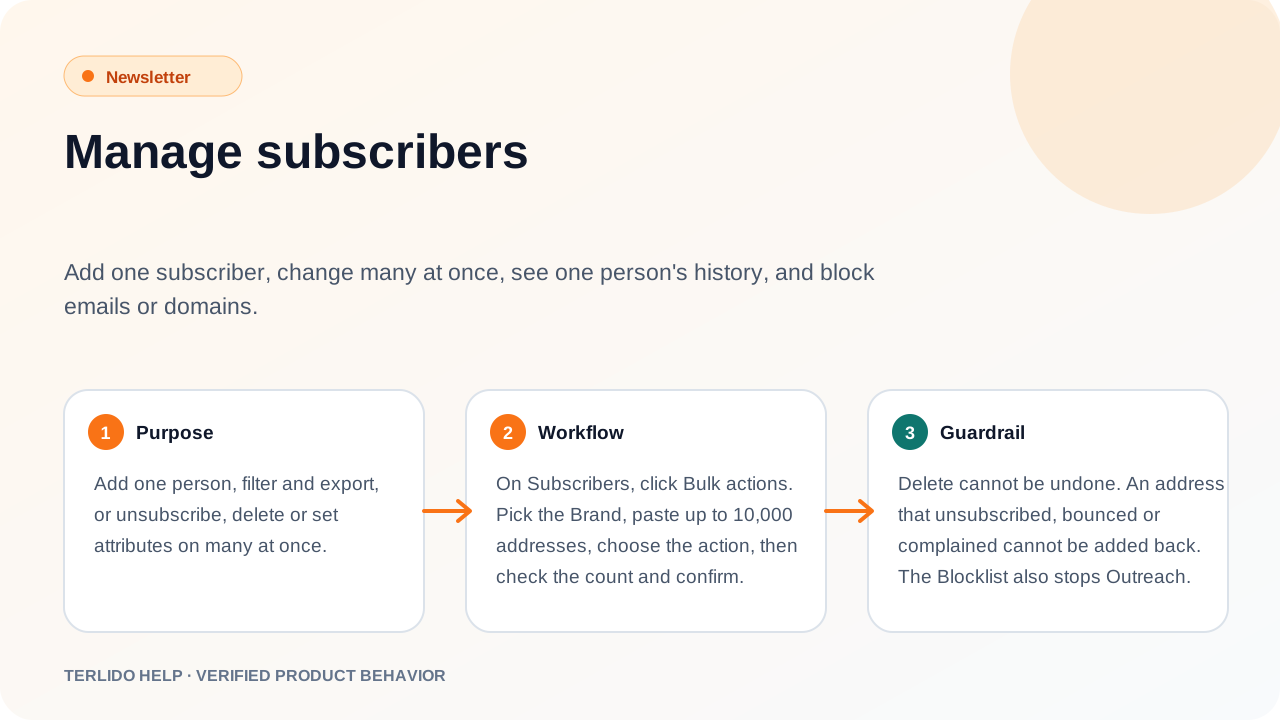
Add one subscriber, export a filtered list, unsubscribe or delete many at once, see one person's history, and block emails or domains.
Add one subscriber, export a filtered list, unsubscribe or delete many at once, see one person's history, and block emails or domains.
Add one subscriber
On Subscribers, click Add subscriber. Pick the Brand, type the Email and optionally a name, and pick a List. Then choose:
- Add as active. Choose where they agreed to get your email. No email is sent and welcome automations do not start.
- Send a confirmation email. They stay pending until they click the link. Welcome automations start when they confirm. The brand needs a sending mailbox.
An address that unsubscribed, bounced or complained cannot be added back here.
Filter by attributes and more
Above the table, use Search, List, Status and Engagement for the common cases. For anything else click Filters, then Add filter. Each row is one rule, and every rule must match:
- Custom field (a subscriber attribute such as
plan): equals, does not equal, contains, is set, is not set. Type the field key; known fields are suggested. - Tag: has or does not have.
- Source: is or is not.
- Subscribed: before or after a date, within the last or more than a number of days ago.
- Last click: within or not within the last number of days, or never.
- List and Segment: is in or is not in. These show only when one brand is selected, because lists and segments belong to a brand. A segment that uses another segment in its own rules can't be picked.
The table updates as soon as a row is complete; a half-filled row is ignored. The Filters button shows how many rules are on, and the status counts, page count and Export CSV all follow the same rules. Close the panel and the rules stay on; Clear filters removes them.
Sort the table
Click any column heading — Subscriber, Brand, Status, Lists, Source, Subscribed, Last click or Engagement — to sort by it. Click the same heading again to turn the order around; the arrow on the heading shows which column is in charge and which way it runs. Text columns start A to Z, dates and counts start with the largest first. The table opens on Subscribed, newest first.
The table fits the window without scrolling sideways. Source and Last click show on wide screens (1536 px and up); on narrower laptops and phones the subscribers show as a list instead of a table. Each row's ⋯ menu has View details, Edit lists and Delete.
The order covers everyone who matches your filters, not just the page you are looking at, and sorting takes you back to page 1. So sorting by Last click really does put your most recently active people at the top of the list, however many pages it has.
Export subscribers
Filter the table (brand, list, status, engagement, search and any Filters rules), then click Export CSV. The file has email, names, brand, status, source, the subscribe, confirm, unsubscribe and last-click dates (UTC), the lists each person is in, their tags, and one cf_<key> column for each contact custom field (for example cf_plan). A field with no value is an empty cell. Big lists download as a stream, so the file starts at once. The same file is available through the API: GET /api/v1/newsletter/subscribers/export.csv.
Unsubscribe or delete many at once
Click Bulk actions:
- Pick the Brand.
- Paste addresses (one per line, or separated by commas) or upload a .txt or .csv file. Up to 10,000 addresses.
- Choose Unsubscribe them or Delete them, then check the count and confirm.
The run shows its progress and ends with a summary: found, changed, already unsubscribed or not changeable, not found, and not valid. Unsubscribing works like a reader's own unsubscribe: it is recorded, webhooks fire and their automations stop. Deleting removes the subscriber and their history from this brand and cannot be undone. If a run stops part way, run the same addresses again; the ones already done are skipped.
Set attributes on many at once
In the same dialog, choose Set attributes. Add one row per field: a field key (existing keys are suggested) and a value, or tick Clear to empty the field. Add attribute adds another row. Review shows how many fields and addresses, then Set attributes on N runs it in batches of 500. Only the fields you list change; everything else on the contact stays. A bad key or value stops the run with the server's message before anything is written. The summary shows found, updated, not found and not valid. Agents can do the same with the MCP tool newsletter_set_attributes.
See one subscriber's history
Click an email in the table. A panel opens along the right-hand side, the same one Outreach uses for a contact, so the table stays readable behind it. You see their status and dates, the same address in your other brands, their lists, the consent record (when and how they agreed or left), recent broadcasts with opens, clicks and bounces, their automations and recent activity. Close it with the X, with Escape, or by clicking outside it.
Edit a subscriber's attributes
The Attributes section of the same panel lists the contact's custom fields (for example plan). Change a value, empty a field to clear it (a yes/no field has an empty choice for that), or type a new key and value under the list, then click Save attributes. A new key becomes a text custom field for the whole workspace. A key that is already listed is edited in its own row.
These are the same custom fields Outreach shows on the contact, so a change shows in both. An automation that starts when "A custom field has a value" checks every minute, so marking someone plan = paid here can start a sequence for them. If you can only view a brand, you see the values but cannot edit them.
Blocklist
The Blocklist tab lists the emails and domains that never get email from you. Paste one email or domain per line (up to 500) to add them, search, or remove an entry.
The blocklist is shared with Outreach: an entry stops Newsletter and Outreach email, and also stops matching Outreach campaign contacts. Adding an entry does not change anyone's subscriber status. Client users without full access see a note that the workspace admins manage it.
For agents
The MCP tools newsletter_get_subscriber_status and newsletter_count_subscribers read one address's status in a brand and a brand's active subscriber count.