Send now or schedule
Prepare a broadcast, pass the send checklist, then send it now or at a set time.
Prepare a broadcast, pass the send checklist, then send it now or at a set time.
How to use it
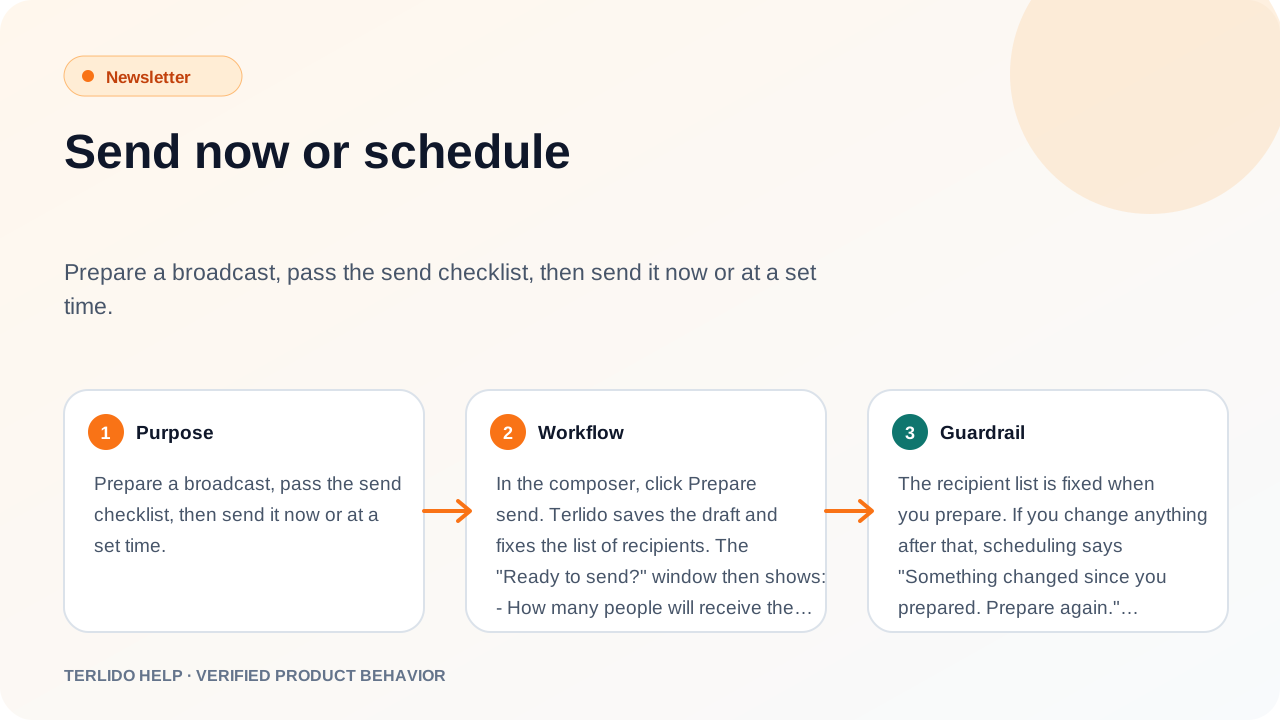
In the composer, click Prepare send. Terlido saves the draft and fixes the list of recipients. The "Ready to send?" window then shows:
- How many people will receive the issue, and how many are left out because they are not active or are suppressed.
- How long the send takes from this mailbox: "Sends today", or "Sends over N days (about X a day from …)".
- The send checklist.
Under When, choose Send now, or Schedule for a time and enter the time in your brand's time zone (the label shows it, for example Time (Europe/Sofia)). A time that does not exist on a daylight-saving change moves to the next real minute. Then click Send now or Schedule. You can schedule up to one year ahead.
Important behavior
The recipient list is fixed when you prepare. If you change anything after that, scheduling says "Something changed since you prepared. Prepare again."
Recipients are active subscribers in the audience you chose. Addresses and domains on the workspace or global suppression list are always left out.
The send checklist
These items must all pass before you can send:
- Postal address is set. If it is missing, type it in the checklist ("Street, city, postal code, country") and click Save address. It goes in the footer of every email.
- Mailbox is connected and allowed to send. The checklist links to Mailboxes if not.
- At least one recipient.
- Unsubscribe link and header are present. Terlido adds them; this checks they made it into the email.
- Subject and content are valid. The email needs a subject and some text.
- Within the monthly send limit. Shown only when the brand has a limit.
- Click tracking is on. Shown only when the email has a subject test or a poll: both count clicks.
Two items are advice and never block a send:
- Subject fits on a phone: 60 characters or less.
- You sent yourself a test: for the current subject, preheader and body.
After you send
The broadcast page shows "Scheduled for …" or "Started …" and counts for Sent, Waiting, Skipped, Failed, Unconfirmed and Recipients.
- Unschedule turns a scheduled broadcast back into a draft. The prepared recipients are kept.
- Duplicate (on the broadcast page and in the Broadcasts list) copies any broadcast into a new draft: subjects, preheader, body, audience, mailbox and tracking. Nothing is prepared or scheduled.
- Every sent email has a View in browser link in its footer. It opens the issue on the web without any reader's details, even if the issue is not in your public archive. Anyone with the link can read that issue; search engines are told not to index it.
- Cancel send works while a broadcast is scheduled or sending. Emails not yet sent are skipped. Emails already sent stay sent.
- If the mailbox stops working, sending pauses until it is back.
- If your mail provider (Gmail, Microsoft 365 or your SMTP server) says the mailbox is sending too fast or has reached its daily limit, Terlido pauses automatic sending from that mailbox: 15 minutes (or as long as Microsoft asks) for a rate limit, 4 hours for a daily limit. The refused email is not lost; it goes out after the pause. While a broadcast is held this way, its page shows "Paused by your mail provider until HH:MM" in your local time. Replies you write yourself are never paused.
Sending pace
Each mailbox sends up to 20 emails a minute, spaced about 2 to 3 seconds apart instead of all at once, the way a person sends. Welcome and other automation emails share the same pace. A broadcast uses only the part of the mailbox's daily limit left after planned outreach, warmup and the transactional reserve, so a big list can take several days from one mailbox. The "Ready to send?" window tells you how long.
Monthly send limit
On Pro, an admin can set a Monthly send limit per brand in Settings. It counts emails sent from broadcasts and automations in the current UTC month, plus emails already queued. Tests and confirmation emails do not count.