Segments and housekeeping
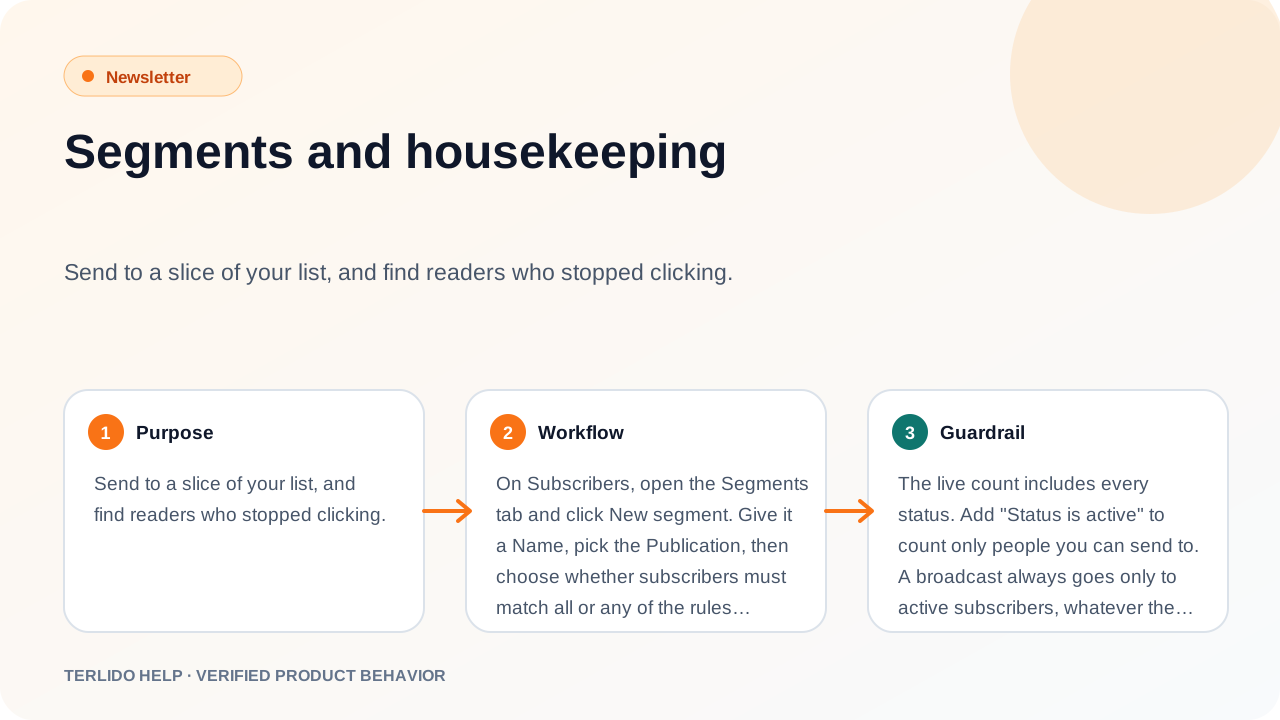
Send to a slice of your list, and find readers who stopped clicking.
Send to a slice of your list, and find readers who stopped clicking.
How to use it
On Subscribers, open the Segments tab and click New segment. Give it a Name, pick the Brand, then choose whether subscribers must match all or any of the rules. Click Add rule for each rule, up to 20.
The builder shows a live count: "N subscribers match".
To use a segment, pick it under Audience in the broadcast composer.
Important behavior
The live count includes every status. Add "Status is active" to count only people you can send to. A broadcast always goes only to active subscribers, whatever the segment says.
A segment that other segments use cannot be deleted.
Rules
| Field | Options |
|---|---|
| Status | is, is not |
| Source | is, is not |
| Tag | has, does not have |
| Custom field | equals, does not equal, contains, is set, is not set |
| Subscribed | before, after, within the last N days, more than N days ago |
| Last click | within the last N days, not within the last N days, never |
| Segment | is in, is not in |
| List | is in, is not in (a list of this brand) |
| Brand | is subscribed to, is not subscribed to |
Days can be 1 to 3,650. Rules use clicks, not opens, because opens are not reliable. Only verified clicks count: a link scanner's click does not (see Verified clicks).
Housekeeping
The Housekeeping tab lists active subscribers who got at least one email in the last N days and clicked nothing.
- Set No click in (days): 30 to 1,095, 180 by default.
- Click Check now. The table shows Email, Subscribed and Last click for the first 100 people.
- An admin can click Unsubscribe these.
Housekeeping never unsubscribes anyone by itself. The list refreshes every Monday. When you click Unsubscribe these, Terlido checks each person again and keeps anyone who clicked or came back since.