Get started with Terlido Newsletter
Create your brand and give Newsletter a mailbox to send from.
Create your brand and give Newsletter a mailbox to send from.
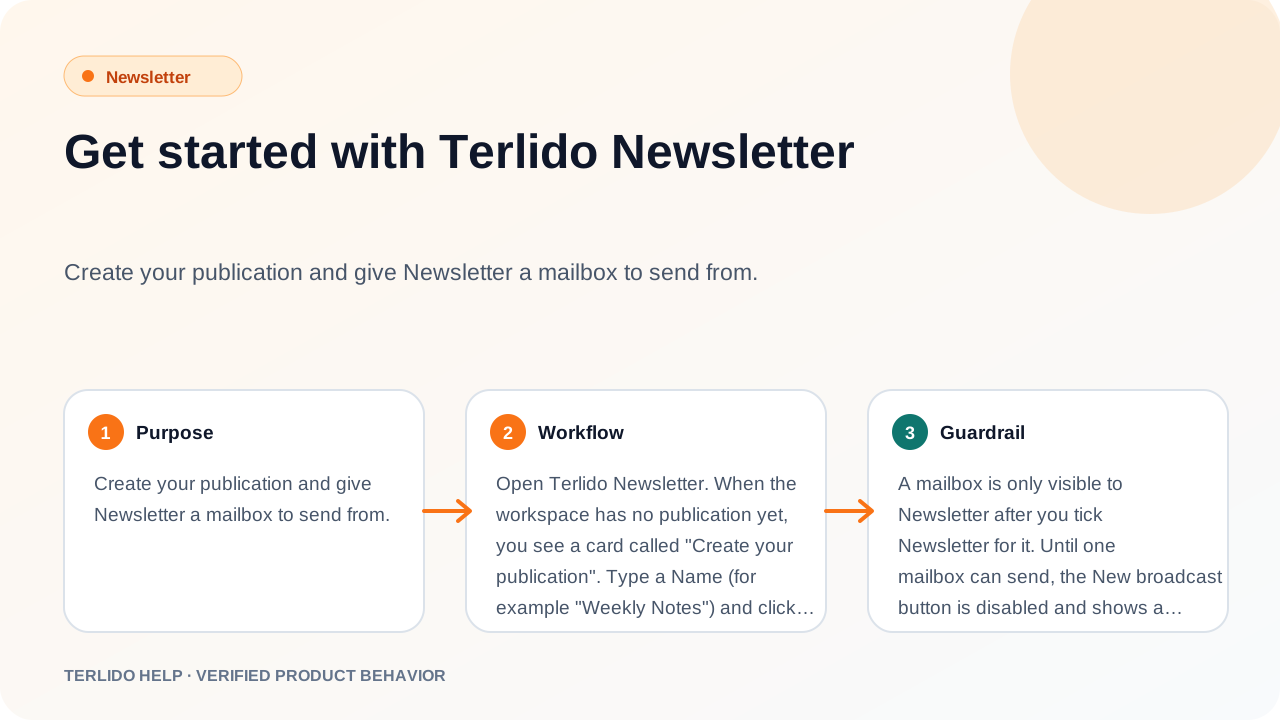
How to use it
Open Terlido Newsletter. When the workspace has no brand yet, you see a card called "Create your brand". Type a Name (for example "Weekly Notes") and click Create brand.
Then give Newsletter a mailbox. Click Mailboxes in the Newsletter menu. It opens the Connected mailboxes page filtered to Newsletter access ("Show all products" removes the filter). Connect a mailbox with Connect Microsoft or the IMAP/SMTP form, or use one you already connected for Outreach. In the Access column, tick Newsletter for every mailbox Newsletter may send from. Only workspace admins see that column.
Now you can click New broadcast on the Broadcasts page.
Important behavior
A mailbox is only visible to Newsletter after you tick Newsletter for it. Until one mailbox can send, the New broadcast button is disabled and shows a "Give Newsletter a mailbox" link.
A new brand starts with:
- Double opt-in on, so every new reader confirms by email first.
- The public archive off.
- The time zone set to UTC.
- UTM tags on links turned on.
- Referrals off.
The sender name starts as the brand name. Change it, and set a Reply-to email, in Settings under Sender. With a reply-to address, readers' replies go there instead of to the sending mailbox, so they do not show in Replies in Terlido. Both apply to broadcasts, automations, tests, confirmation emails and transactional email.
The brand's default mailbox sends confirmation emails, and new drafts use it when it can send. Set it in Subscribers, Signup form, under "Confirmation emails are sent from". If the default can't send, a new draft uses the first mailbox that can.
Every email needs your postal address in the footer. You add it the first time you send, in the send checklist. See Send now or schedule.
Work with more than one brand
A brand is what the API calls a publication. With two or more brands, the left rail of Newsletter has a Brand picker. It shows on wider screens, not on a narrow one. With one brand it shows that brand's name and nothing to pick.
- Pick one brand and every page shows only that brand: its broadcasts, automations, templates, transactional templates, subscribers, lists, segments, housekeeping and settings.
- Pick All brands to see everything you can see. Overview adds the totals of all brands and shows one row per brand. Broadcasts, Automations and Subscribers get a Brand column.
- Your choice stays when you move between pages. Your browser remembers it, so it is still there next time you open Newsletter on that device.
- Under All brands, buttons that create something, like New broadcast or New automation, ask you to choose a brand first.
- Client users only see the brands shared with them. All brands means all of those.
Plans
| Free | Pro | |
|---|---|---|
| Brands | 1 | Unlimited |
| Subscribers | 10,000 | 100,000 |
| "Sent with Terlido Newsletter" in the footer | Yes | No |
Pro also adds automations beyond the welcome series, polls, RSS-to-email, referrals, monthly send limits, your own domain and the Newsletter API.
Where things are
| Menu | What it is for |
|---|---|
| Overview | Subscriber growth and how each broadcast did |
| Broadcasts | Write, test, schedule and send issues |
| Subscribers | The list, segments, housekeeping, import, signup form |
| Automations | Welcome series and other automatic emails |
| Templates | Six starter layouts for a new broadcast |
| Transactional | Templates for receipts, resets and other one-off emails |
| Replies | Replies from readers, in the shared inbox |
| Mailboxes | Which mailboxes Newsletter may send from |
| Settings | Growth, send limits, and shared items: mailboxes, domains, blocklist, webhooks |