Newsletter automations
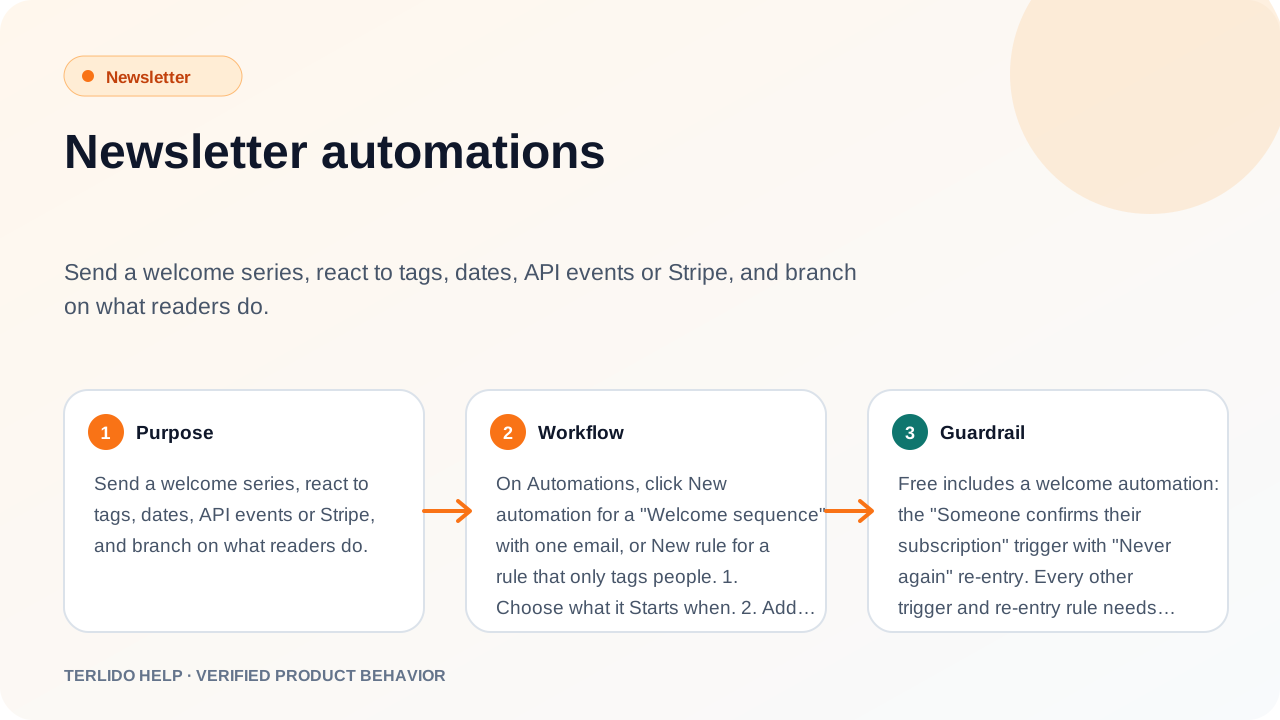
Send a welcome series, react to tags, dates, API events or Stripe, and branch on what readers do.
Send a welcome series, react to tags, dates, API events or Stripe, and branch on what readers do.
How to use it
On Automations, click New automation for a "Welcome sequence" with one email, or New rule for a rule that only tags people.
- Choose what it Starts when.
- Add steps.
- Choose who may Enter again.
- Click Activate once the checklist passes.
Use Pause and Resume to stop and restart it.
Important behavior
Free includes a welcome automation: the "Someone confirms their subscription" trigger with "Never again" re-entry. Every other trigger and re-entry rule needs Pro. The checklist row "Your plan includes this trigger" tells you.
After activation, the trigger and the list of steps are fixed. You can still edit emails, waits, conditions and the goal.
Triggers
- Someone confirms their subscription.
- A tag is added, anywhere in Terlido, after the automation is active.
- Someone joins a list: any of the lists you tick, once their subscription is active. Imports and API adds count. Joins before you activate (or while paused) do not.
- A date in a custom field comes around each year, before, on or after the day (up to 365 days).
- A specific date.
- A custom field has a value: a field, then is, is not or is empty, and a value (for example
planispaid). Choose who starts: People who start matching after you activate, or Everyone who matches, now and later. Terlido checks every minute, for active subscribers. Someone who stops matching leaves before their next step, without another email. If they match again later, Enter again decides. "Is not" and "is empty" also match people who have no value at all, so with "everyone" they can match most of your subscribers. Set the field through the API or MCP, like any custom field. - An event arrives from the API. The builder shows an example call and a Create API key button for a key that can only send events. The person must already be a subscriber.
- An event arrives from your Stripe account: a customer is created, an invoice is paid, or a subscription is cancelled.
Date triggers run at 9:00 in the time zone you choose.
Connect Stripe
The Stripe dialog asks for a read-only restricted key with Customers access (a secret key is not accepted), then gives you a webhook URL to add in Stripe and asks for its signing secret. Stripe events only match existing subscribers by email. Nobody new is ever added.
Steps
An automation can have up to 50 steps:
- Email: subject, preview text and body.
- Wait: minutes, hours or days, up to one year.
- Condition: has tag, is in list, custom field equals, or clicked any email in this automation (a click from a known link scanner does not count). Each has a yes and a no branch.
- Add tag and Remove tag.
- Send webhook: an event your webhooks receive.
- Exit.
Enter again
- Never again (default).
- Again after they finish.
- Every time, at least a set time apart. The yearly date trigger uses this, one day apart.
Exit goal
Set a goal (has tag, or custom field equals) to take people out once they reach it. Terlido checks the goal when the person's next step is due, not the moment it is met. Suppressed people leave automatically.
Activation checklist
- Postal address is set, and the mailbox is connected and allowed to send (only with an email step).
- Unsubscribe link and header are present.
- Subjects and content are valid.
- Steps and trigger are complete.
- Your plan includes this trigger.
Advice that does not block: subject length, only one welcome automation per brand, and a webhook listener for Send webhook steps.
An active automation shows In progress, Completed, Left early and Stopped.