Write a broadcast
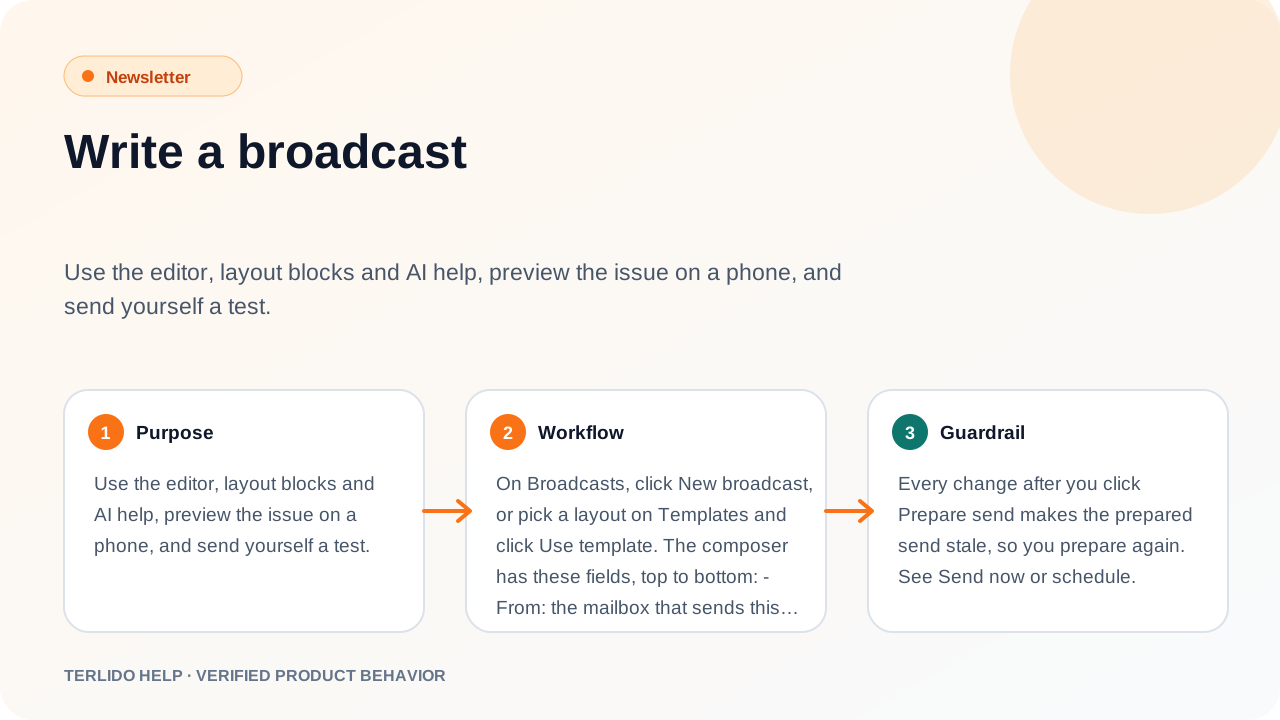
Use the editor, layout blocks and AI help, preview the issue on a phone, and send yourself a test.
Use the editor, layout blocks and AI help, preview the issue on a phone, and send yourself a test.
How to use it
On Broadcasts, click New broadcast, or pick a layout on Templates and click Use template. The composer has these fields, top to bottom:
- From: the mailbox that sends this issue. A mailbox that is not connected shows "(not connected)", and a send from it waits until it is back.
- Send to: Whole brand, or Chosen lists (tick one or more lists; people in any of them get it). Leave out people in removes the members of the lists you tick, even if they are in a chosen list. A list cannot be both chosen and left out.
- Segment (optional): narrows the audience to one of your segments.
- Subject, with Suggest subjects for AI ideas.
- A/B test the subject, which adds Subject B.
- Preheader: the short line most inboxes show after the subject.
- Tracking: Track opens and Track clicks, both on by default. With clicks off, links go out as written (with your UTM tags) and the subject test and polls cannot run.
- Email: the body.
The draft saves itself while you type. The header shows Saved, Unsaved changes, Saving… or Couldn't save (with Retry).
Important behavior
Every change after you click Prepare send makes the prepared send stale, so you prepare again. See Send now or schedule.
The editor
Use the Insert menu to add:
- Personalization:
{{firstName}},{{lastName}},{{email}}and an Unsubscribe link. Add a fallback for empty values with{{firstName | "there"}}. - Layout: Button, Two columns, Divider, Spacer, Image with link, Social links (Facebook, Instagram, LinkedIn, X, YouTube, Website) and Poll.
- Library: insert a saved template.
- Media: insert an image.
Switch between Editor and HTML to edit the code. Import HTML and Export HTML load and save a file. On save, Terlido removes scripts and other markup that email can't carry. The body can be up to 512 KB.
Your brand's email style
Under Settings > Email style, set a logo, an accent colour, a background colour and a font (Arial, Georgia or System font) for each brand, then click Save. Every broadcast and automation email of that brand uses them, and so does the preview: the logo sits on top, buttons, links and poll options take the accent, and the background frames the email. Leave a colour on Default to keep the standard look. The logo is the same one your public page shows.
Confirmation, goodbye and transactional emails, the web version and Export HTML still use the standard look for now.
Polls
A poll block holds a question (up to 200 characters) and 2 to 5 answers (up to 80 characters each). Readers vote with one click from the email. Each subscriber's first answer counts, and the results show on the sent broadcast. Polls are a Pro feature.
AI help
- Suggest subjects gives five subject ideas under 60 characters.
- Select text in the editor and click Shorten or Rewrite.
Each AI call uses 1 AI credit. A failed call is not charged. If the AI changes a {{variable}}, Terlido refuses the result so your merge tags stay intact.
A/B test the subject
Turn on A/B test the subject and write Subject B. Terlido sends to 20% of the audience first, half with each subject. Four hours after that test group is sent, the subject with more unique clicks goes to everyone else. A tie goes to Subject A. Opens are never used to pick the winner, because they are not reliable.
Preview on a phone
The preview has a Desktop and Phone switch, and a Subject A / Subject B switch when the A/B test is on. Phone shows a Gmail inbox on an iPhone, with your issue on top between ordinary emails: sender, subject and the preheader as the snippet. Tap the issue to open it. The preview fills merge tags for a sample reader called "Sam Reader".
Send yourself a test
Click Send test (or Send test (A) and Send test (B)). The test goes to your own address, from the broadcast's mailbox, with your first name filled in. It does not count toward a monthly send limit. A test is not sent if your address is on the suppression list or the mailbox has no sends left for now.